
First, setup the Digi One IA RealPort (Digi One TS) for a Raw
TCP Socket connection.
NOTE: Refer to the Users Guide for detailed instructions.
In summary:
Next, using the telnet command, connect to the IP address
of the Digi One IA RealPort (Digi One TS) and login. We will need to set
the idle-time parameter to 10. At the telnet command prompt enter the
following:
#> set port idletime=10 range=1
This will complete the Digi Device Server configuration.
Now, connect a crossover cable from the Digi One IA RealPort (Digi One TS) to serial port number one on the PLC.
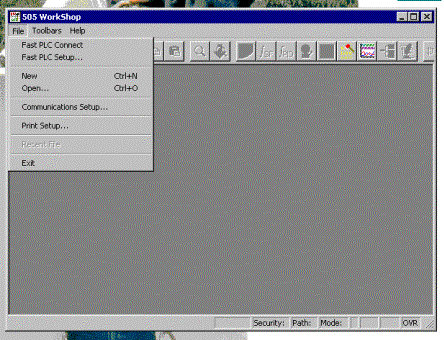
Open the application and click File. Select Fast PLC Setup.
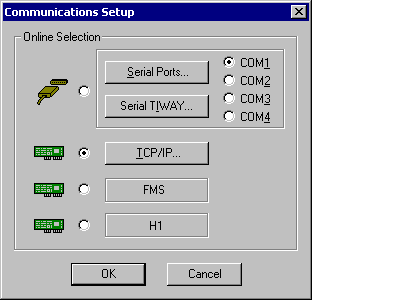
Select the radio button next to TCP/IP... and click on the TCP/IP button.
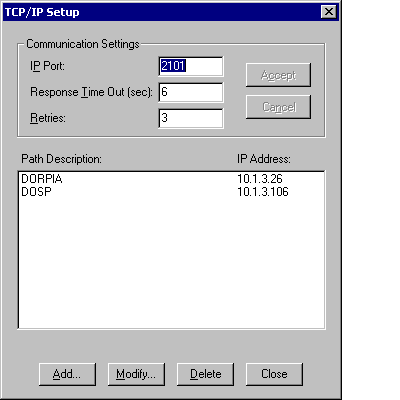
In the TCP/IP Setup Screen, add a socket port of 2101 in the box labeled IP Port . Click on the Accept button, which should now be available. This is the raw TCP socket value for the Digi serial port number one. Click on the Add... button and add the IP address of the Digi Device Server and give it a Path Description.
The Add button... screen looks like this:

Then go to File> and select Fast PLC Connect.
A setup box called TCP/IP Network Access should appear.
Select the Digi Device Server and click OK. If everything is set up
correctly the screen below will appear. Select the Connect button.
You should now be successfully connected online with the PLC.

Via the Digi Device Server, you should now be able to
communicate with the PLC.
NOTE: Workshop 505 has a com port limitation of 1-4. And allows only one
TCP socket connection.